
How to import from 1Password to Proton Pass
Proton Pass has built-in support for importing your passwords and other data from 1Password, including 1PUX files.
The process for this has two stages:
1. Export your passwords and other data from 1Password
2. Import your exported passwords into Proton Pass
How to export from 1Password on macOS
- Open the 1Password desktop app and go to the menu bar → File → Export → your 1Password username.

2. Enter your 1Password master password, ensure Export file format: 1PUX is selected, and click Export Data.
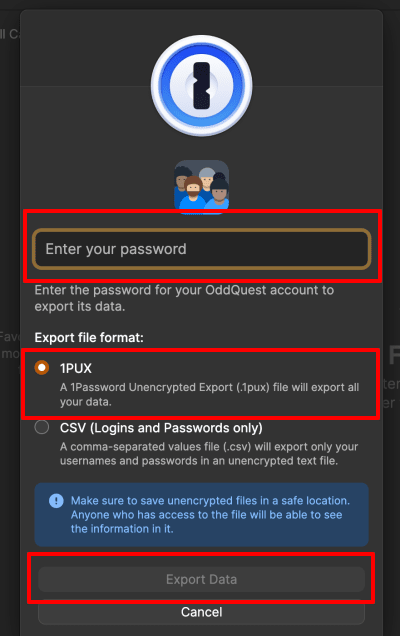
Your system’s file manager will ask where you want to save the .1pux file.
How to import to Proton Pass
1. Open the Proton Pass browser extension and go to ☰ → Settings.
2. Go to the Import tab, select 1Password (1pux, 1pif) from the dropdown Provider list, and either drag the file you exported to the File box or click the Choose a file or drag it here button to manually select it using your system’s file manager.
Click Import when you’re done.

