
Notification emails
If you have another email address, you can enable notification emails to make sure you don’t miss any messages sent to your Proton Mail inbox.
We’ll send a notification to your other email address when you have new messages in your Proton Mail, and haven’t signed in to Proton for over 24 hours.
All notification emails are sent from no-reply@mail.protnn.me.
How it works
When enabled, notifications are sent to your recovery email address. This can be another Proton Mail address, or a non-Proton address.
We won’t spam you with messages. Email notifications are capped at a maximum of 1 per day, and we only send an email if you:
- Have unread messages in your Proton Mail Inbox
and
- Haven’t signed in to your Proton Account in the last 24 hours.
If you sign in to your Proton Mail account and then sign out (or close your browser), the 24-hour waiting period will reset. A new email will trigger a notification within an hour or two.
At the moment, it’s not possible to set up notification emails for individual messages or senders.
How to enable notification emails
1. Sign in to Proton Mail at mail.protnn.me(새 창) and go to Settings → All settings→ Account→ Recovery → Account recovery → Recovery email address.
2. Enter the email address that you want your notification emails to be sent to and click Save.
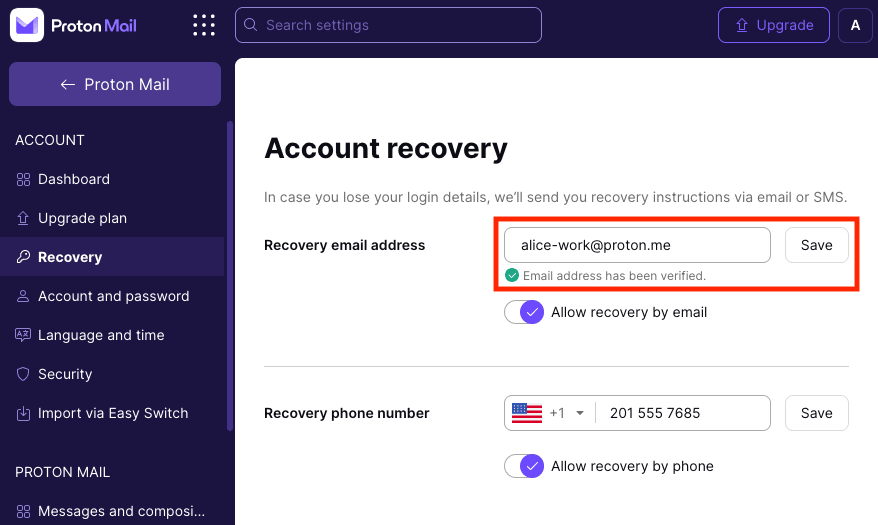
This is also the address we’ll use if you need to reset your password by email to recover your Proton Account. If you provided a recovery address when you set up your new Proton Mail account, ensure it is correct.
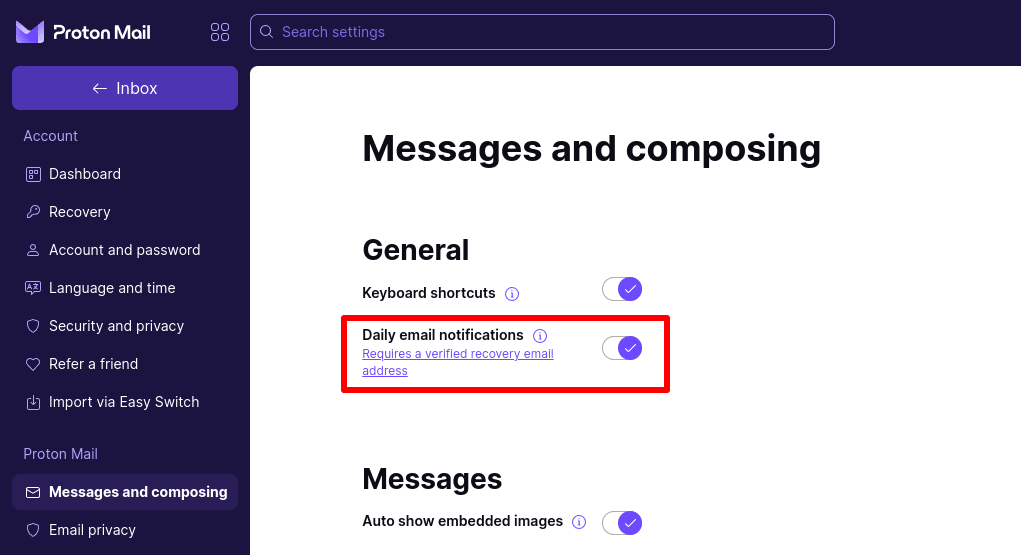
2. Now go to Proton Mail → Messages and composing → General and turn on the Daily email notifications switch.
Data privacy
Providing Proton Mail with an email address for notification emails and email recovery means we know that email address. If Proton Mail is issued with a legally binding Swiss court order telling us to turn over this email address, we must comply.
If you delete the email address from your Settings page, it is permanently deleted from our system.
Troubleshooting
If you have received an email notification but can’t find the new messages when you log in to your Proton Mail account:
- Check your All mail folder.
- Ensure you are logged in to the correct Proton Mail account.
If you can’t remember your Proton Mail account details, the first letter of your Proton Mail username for the account that sent the notification is shown in the message subject line. If you’re still not sure of your Proton Mail username, please visit Forgot Your Username?
If you don’t want to receive notification emails, log in toProton Mail at mail.protnn.me(새 창) and go to Settings → All settings→ Proton Mail → Messages and composing → General and turn off the Daily email notifications switch.
Proton Mail also supports desktop notifications.