
How to use Proton Pass passkeys
Passkeys allow you to authenticate yourself for online accounts without using passwords or passphrases. Currently, passkeys are supported in our browser extension and on Android and iOS devices.
Note: Firefox doesn’t yet offer passkey support on iPhones and iPads.
Read more about passkeys and how they work.
This guide only covers creating passkeys. To manage them, you can follow the same steps as any other Proton Pass item. We also have guides on how to use Proton Pass browser extension, the web app, Android devices, and iPhones/iPads.
- How to use Proton Pass passkeys in the browser extension
- How to use Proton Pass passkeys on Android
- How to use Proton Pass passkeys on iPhone
How to use Proton Pass passkeys in the browser extension
Go to the site you want to create a passkey for, and follow the steps to create your passkey. Once you’ve done that, you’ll be prompted to save your passkey in Proton Pass. Here’s an example from GitHub.

Proton Pass will prompt you to save the passkey through a pop-up in the top right of your screen. Click on Save passkey.
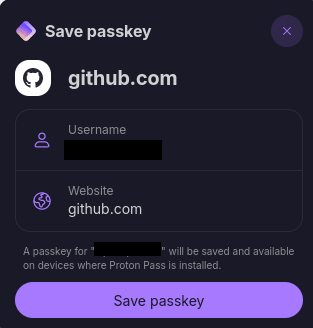
Some services will prompt you to name the passkey. We recommend doing so.

Next time you access the site, Proton Pass will prompt you to enter using your passkey. Just click on the passkey and you’ll be authenticated without needing to do anything else.

Note that you can have multiple passkeys for the same site; they will all be displayed in the same pop-up, and you can choose which to use.

How to use Proton Pass passkeys on Android
Once you’ve made Proton Pass your default password and passkeys app in your Android device’s settings, you can use Proton Pass passkeys on an Android device without any additional setup. Make sure you’re using Android 14, as earlier versions do not support passkeys. (Previously, Google only allowed Google Password Manager in Chrome to handle passkeys on Android.)
If you can’t see Proton Pass as a passkey provider on your Android smartphone, please contact us through the in-app support form.
How to use Proton Pass passkeys on iPhone
Passkeys are available for all iPhones and iPads from iOS 17 onward. Earlier versions do not support passkeys.
Go to the site you want to create a passkey for, and follow the steps to create your passkey. Here’s an example screenshot from GitHub:

A prompt will ask where you want to store your passkey. Choose Proton Pass.

Proton Pass will launch. Now choose the passkey you want to create, then tap Confirm.

Some sites will give you the option to name your passkey. We recommend you do so.

Next time you try to access the website or service, you’ll be prompted to choose whether you want to do so by passkey or password. You can enter by passkey with a single tap on your screen.
